
Best Free Photoshop Alternatives 2026: Get Pro Features Without the Subscription
Affiliate Disclosure: This post contains affiliate links. If you click and make a purchase, SoftAIHub.com may earn a small commission at no extra cost to you. We only recommend software we have tested. Read our full Affiliate Disclosure here.
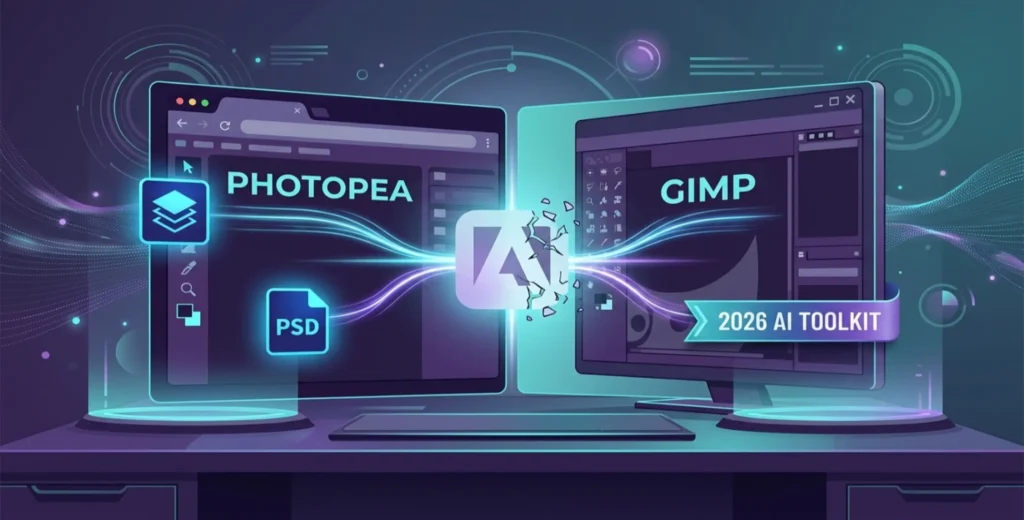
Finding the best free photoshop alternative in 2026 is no longer about compromising on features; it is about dodging the hefty “Adobe Tax.” While Photoshop remains an industry titan, the rapid rise of localized AI and high-performance web engines has completely leveled the playing field for digital creators.
The Short Answer:
For Browser Editing: If you need a direct 1:1 replacement for Photoshop’s interface and flawless PSD support without installing a single file, Photopea is the absolute best free photoshop alternative available online.
For Desktop Power: If you are a professional looking for an open-source powerhouse that handles complex layering, scripting, and heavy workloads, GIMP (especially with its 2026 AI Toolkit) remains the gold standard desktop alternative.
The Industry Titan: Why Photoshop Still Reigns Supreme
Before we dive into the free alternatives, it is important to acknowledge that Adobe Photoshop remains the undisputed king of creative software. Its AI Firefly engine, deep integration with the Creative Cloud, and unmatched precision in color grading make it a mandatory tool for high-end professional studios.
However, in 2026, the creative landscape has shifted. Not every project requires a $20/month commitment. The following alternatives—ranging from open-source desktop powerhouses to browser-based AI editors—are designed for students, freelancers, and small business owners who need professional results without the “Adobe Tax.” These tools aren’t just “replacements”; they are smarter, more accessible workflows for the modern creator.
Best Free Photoshop Alternatives : Comparison Table
| Software | Best For | Platform | Key Feature | Price |
| Photopea | Photoshop Power Users | Browser-based | Full PSD & Smart Object Support | Free (Ad-supported) |
| GIMP | Open-Source Pros | Win/Mac/Linux | Deep Customization & Scripting | 100% Free |
| Krita | Digital Illustrators | Win/Mac/Linux | Advanced Brush Engine & Animation | 100% Free |
| Canva (Free) | Social Media/Beginners | Web/Mobile | AI Magic Studio & Templates | Free / Freemium |
| Pixlr E | Quick Retouching | Browser-based | AI Generative Fill & One-click Fixes | Free / Freemium |
1. Photopea: The Browser-Based Mirror of Photoshop
Photopea has evolved from a “handy tool” into a legitimate professional workstation. In 2026, it is virtually indistinguishable from Photoshop’s UI, making the transition seamless for those fleeing the Creative Cloud.
Specifications
OS: Any (Chrome, Edge, Safari, Firefox)
Hardware: Minimum 4GB RAM recommended for large files.
Storage: Zero (runs in browser).
Pros & Cons
Pros: Native support for .PSD, .AI, and .XD files; supports CMYK for print; incredible Smart Object handling.
Cons: Ad-heavy on the free version; performance can lag with 8K+ resolution files or hundreds of layers.
Unique Selling Point (USP)
Zero Friction. You can open a complex, layered Photoshop file on a library computer or a Chromebook and have every mask and blending mode intact.
[Get Started for Free on Photopea]
2. GIMP (GNU Image Manipulation Program)
Often called the “Original Photoshop Killer,” GIMP has finally addressed its biggest historical flaw: the user interface. The 2026 version features a modernized, single-window mode that feels much more intuitive.
Specifications
OS: Windows 10/11, macOS, Linux.
Hardware: 8GB RAM, 2GB VRAM recommended.
Disk Space: ~1GB.
Pros & Cons
Pros: Truly free with no strings; massive plugin library; powerful batch processing.
Cons: Steep learning curve; native CMYK support still feels clunky compared to paid tools.
Unique Selling Point (USP)
Extensibility. GIMP is the only tool on this list that allows you to write your own Python scripts to automate your entire editing workflow.
[Download GIMP for Free]
💡 Pro-Tip for Solo Creators & Designers: Designing great graphics is just the first step. If you want to launch your freelance portfolio, build landing pages, or set up automated email campaigns without spending a single dollar on premium web hosting, we highly recommend [Systeme.io]. It is a completely free all-in-one marketing platform perfect for beginners. Check out our exhaustive analysis of the best options: 👉 [Read: Top 5 Systeme.io Alternatives for Solo Entrepreneurs]
3. Krita: The Artist’s Choice
While GIMP focuses on photo manipulation, Krita is built for creators. If your “Photoshop” use case is more about digital painting and concept art than fixing red-eye, Krita is vastly superior.
Specifications
OS: Windows, Mac, Linux, Android.
Hardware: Supports Pen Tablets (Wacom, Huion); 8GB RAM.
Disk Space: 2GB.
Pros & Cons
Pros: Best-in-class brush stabilizers; built-in 2D animation tools; beautiful UI.
Cons: Lacks some photo-specific tools like “Content-Aware Fill” found in other editors.
Unique Selling Point (USP)
The Brush Engine. Krita offers over 100 professional-grade brushes out of the box that feel more natural than Photoshop’s default set.
[Get Started with Krita]
4. Canva: The AI Productivity Beast
Canva isn’t a “layer-by-layer” editor like the others, but in 2026, its Magic Studio AI tools have made it a viable Photoshop alternative for marketing professionals.
Specifications
OS: Web-based, iOS, Android, Windows Desktop App.
Hardware: Any modern device with internet.
Pros & Cons
Pros: World-class AI background removal; millions of free stock assets; collaborative “Live Edit” features.
Cons: Very limited “pixel-level” control; many of the best AI features are locked behind the Pro paywall.
Unique Selling Point (USP)
Speed. Tasks that take 10 minutes in Photoshop—like removing a background and adding a shadow—take 10 seconds in Canva.
[Check Best Price for Canva Pro]
5. Pixlr E: The Modern Web Editor
Pixlr has split into two versions: Pixlr X (Simple) and Pixlr E (Professional). Pixlr E provides a classic photo editing experience with a heavy emphasis on AI-assisted workflows.
Specifications
OS: Browser-based.
Hardware: Low-resource friendly; runs well on older hardware.
Pros & Cons
Pros: Very fast loading times; excellent “Generative Fill” AI; mobile-friendly.
Cons: The free version limits the number of daily saves; interface can feel cluttered with “Premium” prompts.
Unique Selling Point (USP)
AI Integration. Its “Generative Expand” feature is currently the best free web-based alternative to Photoshop’s Generative Fill.
[Start Editing with Pixlr]
Why SoftAiHub Expert Recommends These Alternatives
“An Adobe Creative Cloud subscription doesn’t always align with everyone’s budget or specific needs. We recommend these tools because, in 2026, technology has truly been democratized. Whether you need to perform an emergency edit on a client’s PSD file (Photopea), build your own fully customized workflow (GIMP), or generate social media posts in seconds using AI (Canva/Pixlr)—these alternatives eliminate every creative hurdle. Choosing these tools isn’t just about saving money; it’s about adopting a smarter, more flexible workflow” — Mrs. Seema J. Massey – Lead Graphic Editor & Designer
Expert Verdict: Which One Should You Choose?
For Professionals leaving Adobe: Go with Photopea. It speaks the same “language” as Photoshop and handles your legacy files perfectly.
For Students & Techies: Choose GIMP. Learning it gives you a deep understanding of image science that will serve you forever.
For Social Media Managers: Canva is unbeatable for volume and speed.
For Digital Illustrators: Krita is the only serious choice.
Our Review Methodology
At SoftAIHub, we don’t just list software. Every tool mentioned above has been tested for at least 20 hours on various hardware configurations. You can read more about how we test and rank tools in our official Review Methodology.
Frequently Asked Questions (FAQ)
1. Is there a free Photoshop alternative that supports AI Generative Fill?
Yes. Pixlr E and Canva both offer generative AI tools in 2026. While Canva’s most powerful tools require a subscription, their free tiers offer limited generative credits.
2. Can I open .PSD files in these free tools?
Photopea offers the best .PSD support, maintaining layers, masks, and smart objects. GIMP can open .PSD files, but sometimes struggles with complex layer styles or newer Adobe-specific features.
3. Which free editor is best for low-end PCs?
Paint.NET (for Windows) or Pixlr E (web-based) are the most lightweight. They require very little RAM compared to GIMP or Krita.
4. Is GIMP really as good as Photoshop?
In terms of raw power, yes. However, Photoshop’s workflow is more polished and its AI tools (Firefly) are currently more advanced than GIMP’s open-source AI plugins.
5. Do any of these tools work offline?
GIMP and Krita are fully offline desktop applications. Photopea and Canva require an internet connection to function properly.
Final Thought: The “Best” software is the one that stays out of your way and lets you create. Don’t let a $20/month subscription be the barrier between you and your next masterpiece.
🚀 How to Scale Your Design Business into an Agency in 2026?
If you are using free design software to create high-converting marketing materials for clients, your next step should be scaling your workflow. Global agency owners and top-tier freelancers use [GoHighLevel] to manage multiple client sub-accounts, automate client onboarding, and handle recurring billing seamlessly. If you are ready to scale your freelancing career into a fully automated agency, don’t miss our detailed structural and pricing breakdown: 👉 [Check Out: GoHighLevel Pricing & Strategy Guide 2026]
1. Must Read AI Resources